
RCS & SMS Analytics Dashboard: Track Delivery Rates, Reply Rates, and Message Performance
Pinnacle's messaging analytics dashboard tracks SMS and RCS delivery rates, reply rates, read rates, and interaction metrics in real time — with filtering by date, sender, and message type. No data pipeline to build. No charts to design. It's all included.
Ivan

What Is Pinnacle's Messaging Analytics Dashboard?
Pinnacle's analytics dashboard is a built-in, real-time reporting interface that tracks the performance of every SMS, MMS, and RCS message sent through your account. It displays delivery rates, reply rates, read rates, interaction rates, and per-message details — all in one filterable page with no additional setup or engineering required.
Instead of building a custom analytics pipeline — collecting message events, computing metrics, designing charts, and wiring up filters — teams can log in and immediately see how their messages are performing across every channel.
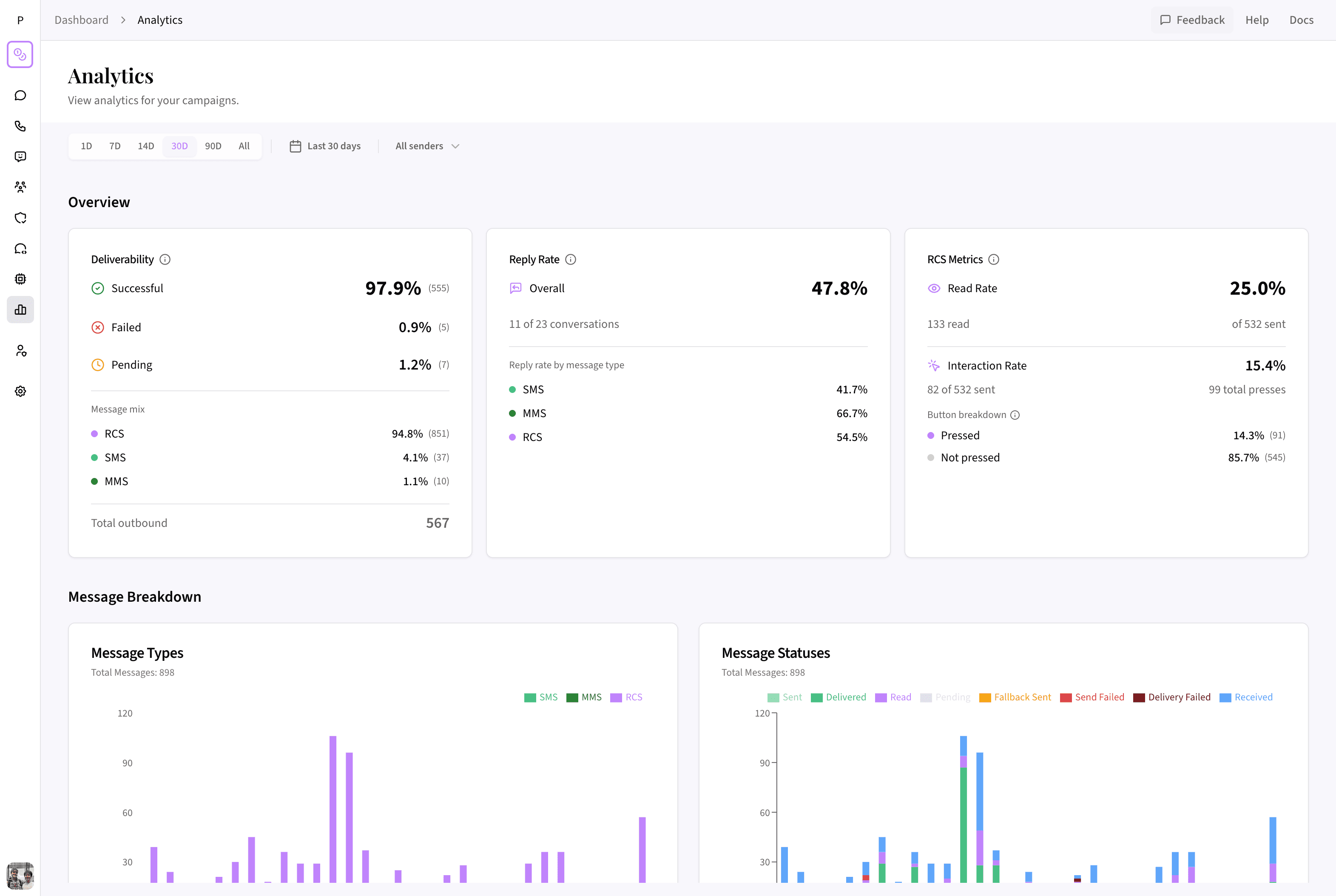 Pinnacle's analytics dashboard — delivery metrics, reply rates, charts, and a full message log in one filterable view.
Why Do Businesses Need Messaging Analytics?
Sending messages without tracking their performance is like running ad campaigns without conversion data. You're spending money and effort, but you don't know what's working.
Common questions that messaging analytics answer:
- Are messages being delivered? Carrier issues, invalid numbers, and configuration errors can silently eat your delivery rate.
- Are recipients reading RCS messages? Unlike SMS, RCS provides read receipts — but only if you're tracking them.
- Which channel drives the most replies? SMS, MMS, and RCS have different engagement profiles. Analytics reveal which one works best for your use case.
- Are interactive elements performing? RCS buttons and quick replies are only valuable if recipients actually press them.
Pinnacle's analytics dashboard answers all of these questions out of the box, updated in real time as messages flow through your account.
How to Track Message Delivery Rates
The top of the analytics dashboard displays three key deliverability metrics that give you an instant health check on your messaging:
Success Rate
The percentage of messages that were successfully sent, delivered, read, or had a fallback sent. This is your primary indicator that your messaging pipeline is working correctly. A healthy account typically shows a success rate above 95%.
Failed Rate
The percentage of messages that encountered a send failure or delivery failure. This metric is clickable — selecting it immediately filters the messages table below to show only failed messages with their specific error details. This makes troubleshooting fast: you can go from noticing a spike in failures to reading the exact error in two clicks.
Pending Rate
The percentage of messages that are queued or awaiting delivery confirmation. A consistently high pending rate may indicate carrier delays, throughput limits, or a configuration issue that needs attention.
Message Mix Breakdown
Below the headline metrics, the dashboard shows your message mix — the volume split between SMS, MMS, and RCS messages displayed as both percentages and raw counts. This breakdown helps teams running multi-channel messaging strategies understand which channel carries the most traffic and how their channel mix is shifting over time.
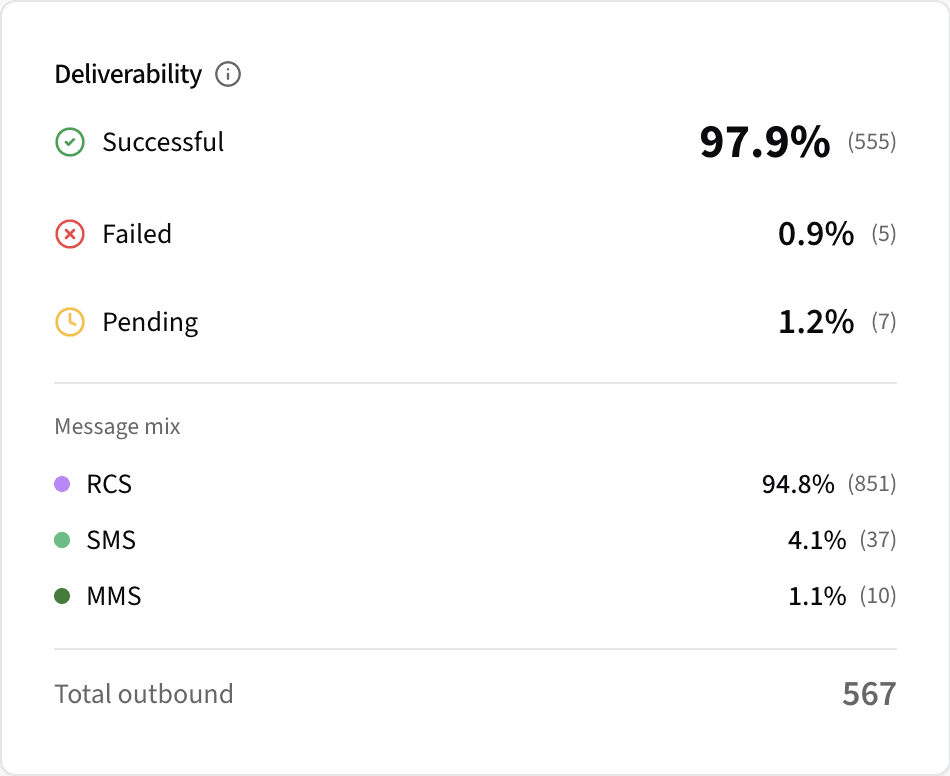 Instant health check — deliverability rates and message mix at the top of the page.
How to Measure Reply Rates by Channel
Delivery is necessary, but engagement is the metric that matters. The reply rate section answers a critical question: of the conversations you initiated, how many got a response?
How Reply Rate Is Calculated
Pinnacle calculates reply rate at the conversation level — replied conversations divided by total conversations — giving you a meaningful engagement metric rather than a raw inbound message count. This approach accounts for multi-message threads and avoids inflating the number with back-and-forth exchanges.
Per-Channel Reply Rate Breakdown
The dashboard breaks reply rate down by messaging channel:
- SMS Reply Rate: The percentage of SMS conversations that received a reply
- MMS Reply Rate: Response rate for conversations initiated with multimedia messages
- RCS Reply Rate: Engagement rate for rich messaging conversations
This per-channel view reveals where your audience is most responsive. If your RCS reply rate is 3x your SMS reply rate, that's a strong signal to shift volume toward rich messaging. If SMS consistently outperforms for a specific use case like appointment confirmations, you know to keep it in the rotation.
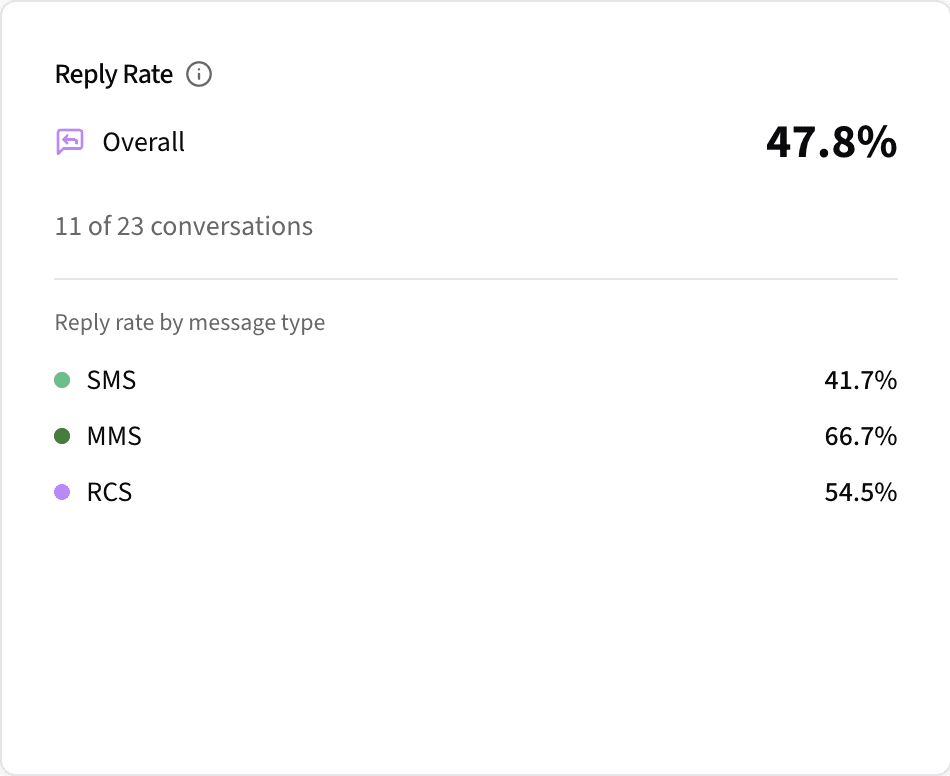 Reply rates broken down by channel — know exactly where engagement is strongest.
How to Track RCS Read Rates and Interaction Rates
RCS provides capabilities that SMS cannot — including read receipts and interactive buttons. Pinnacle's analytics dashboard gives you dedicated metrics to measure how these capabilities perform.
What Is RCS Read Rate?
RCS read rate is the percentage of your RCS messages that were opened and read by the recipient. Unlike email open rates (which rely on tracking pixels and are often blocked by proxies), RCS read receipts are a direct signal from the recipient's device. This makes RCS read rate one of the most reliable engagement metrics available in business messaging.
What Is RCS Interaction Rate?
The interaction rate measures the percentage of RCS messages where a recipient pressed a button — a call-to-action, a quick reply, a URL link, or any other interactive element. This metric tells you whether your rich message design is actually driving action, not just getting seen.
Button-Level Breakdown
The dashboard provides a granular button breakdown:
- Buttons pressed vs. not pressed: What percentage of interactive elements actually got clicked
- Messages with clicks: How many individual messages generated at least one button press
- Total button clicks: The aggregate number of interactions across all messages
- Total buttons sent: The total number of interactive elements delivered
This level of detail enables data-driven message design. If you're sending messages with three buttons and only one consistently gets pressed, you can simplify the layout or rework the underperforming CTAs.
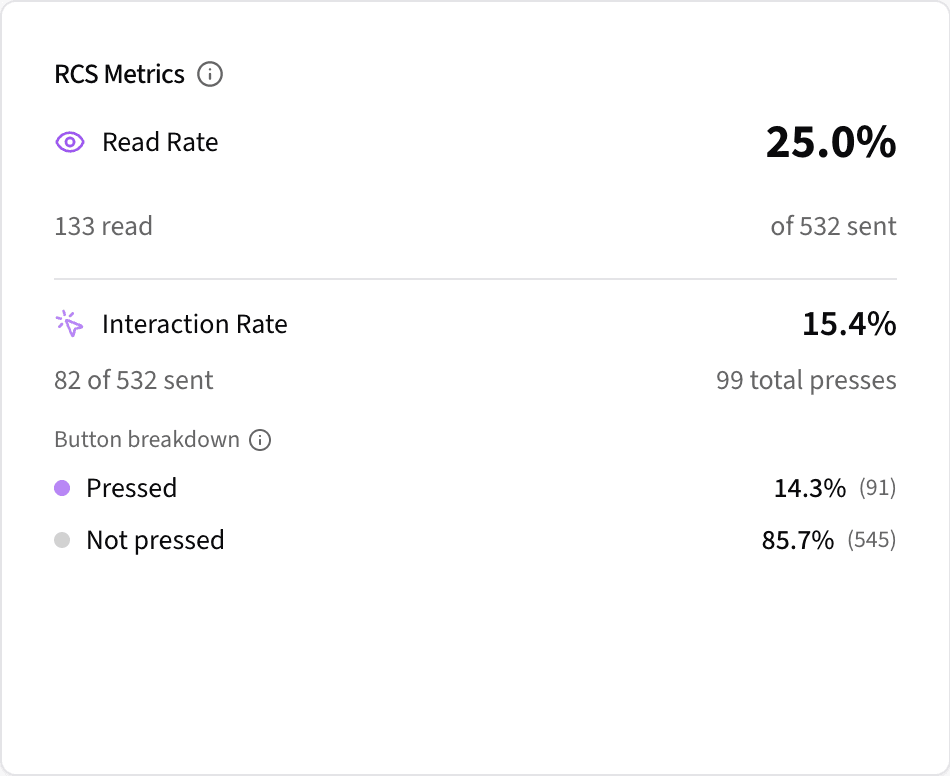 RCS-specific metrics — read rates, interaction rates, and a full button-level breakdown.
How to Visualize Messaging Trends Over Time
Numbers tell you the current state. Charts show you the trajectory. The analytics dashboard includes two primary time-series visualizations.
Message Status Chart
A color-coded bar chart that plots message statuses — sent, delivered, read, pending, fallback sent, send failed, and delivery failed — across your selected date range. Each status has a distinct color so you can immediately spot patterns:
- A cluster of red (failed) bars on a specific day may indicate a carrier outage or a bad phone number batch
- A spike in yellow (pending) during peak hours could signal throughput limits
- Consistent green (delivered/read) across the timeline confirms a healthy pipeline
Clicking any status in the chart filters the messages table below, so you can drill from a visual anomaly directly into the specific messages involved.
Message Type Chart
A companion bar chart that shows your SMS, MMS, and RCS volume over time. Use this to track channel adoption trends, identify volume shifts, and correlate message type with delivery performance.
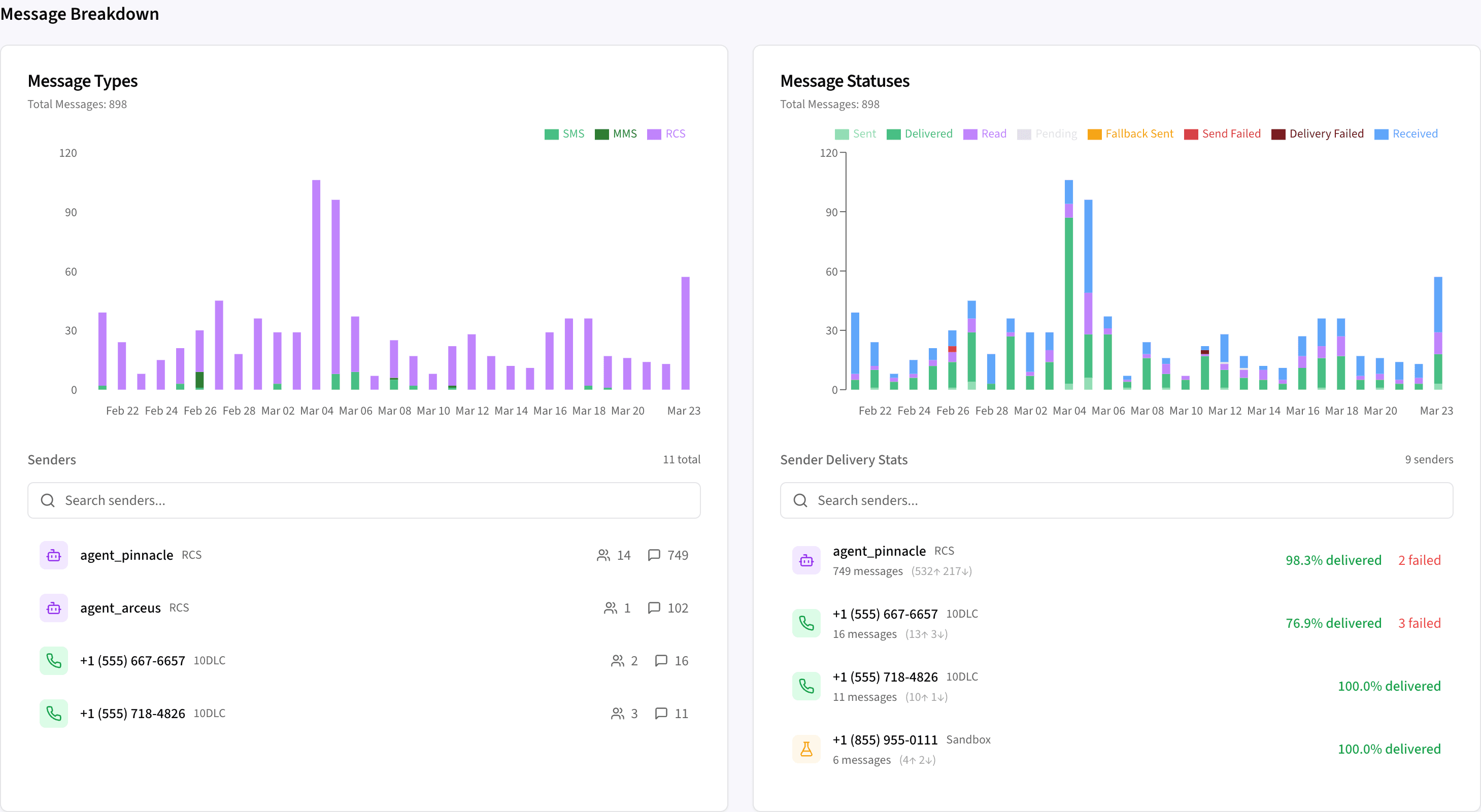 Spot trends at a glance with color-coded status and type charts.
How to Search and Filter Message Logs
Below the charts, a comprehensive messages table logs every outbound and inbound message with full detail.
What Each Message Row Shows
- Timestamp: When the message was sent or received
- Direction: Inbound or outbound
- Sender and Receiver: Phone numbers or RCS agents involved
- Message Type: SMS, MMS, or RCS, displayed as a color-coded badge
- Status: Current delivery state (sent, delivered, read, pending, failed) with a color-coded badge
- Error Details: For failed messages, hover to see the specific error returned by the carrier
- Actions: Open the full message detail or jump directly to the conversation in the conversations dashboard
Sorting and Search
Sort by newest first or oldest first, and search by sender or receiver phone number to locate specific messages. Combined with status filtering (all, sent, delivered, read, received, fallback sent, pending, send failed, delivery failed), you can isolate exactly the messages you need.
Need to find all failed RCS messages from a specific sender in the last 7 days? Three filter selections and a search — done.
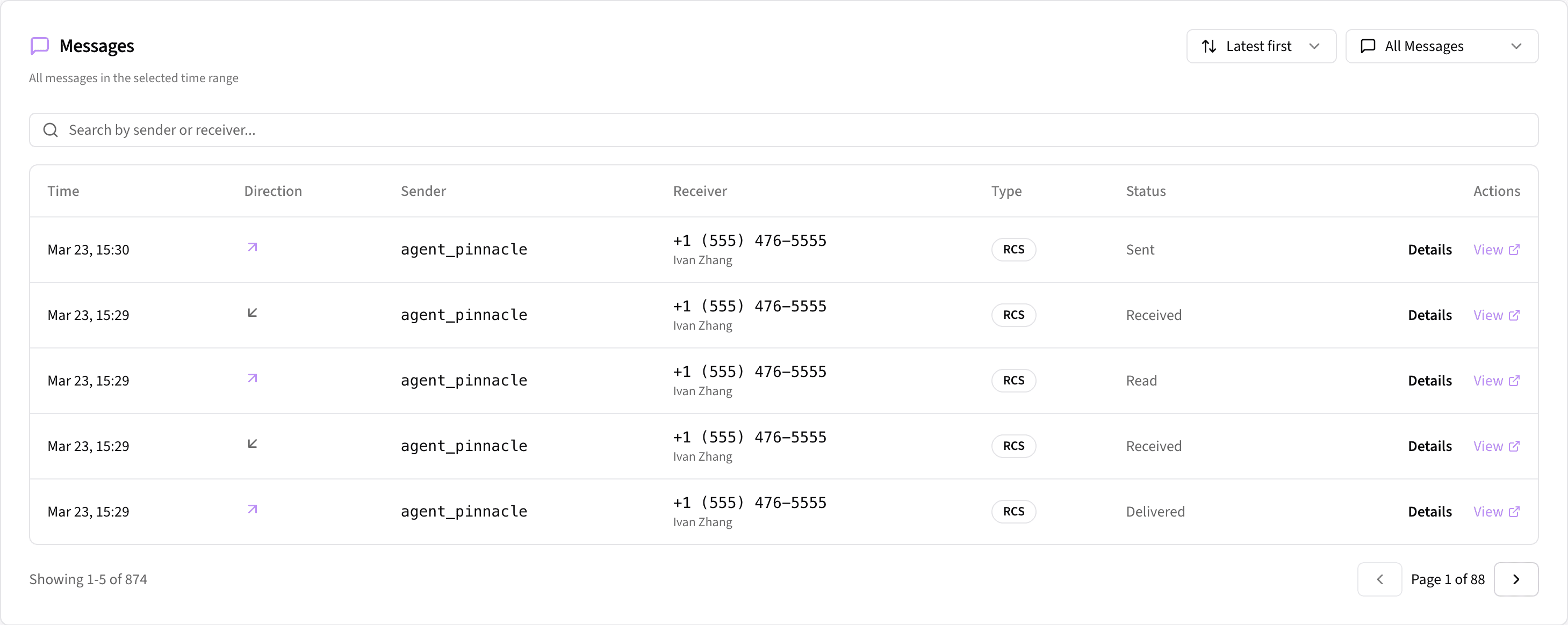 Every message logged with status, type, and one-click access to the full conversation.
How to Filter Analytics by Date Range and Sender
The analytics dashboard provides flexible filtering so every metric, chart, and table row reflects exactly the slice of data you care about.
Date Range Filter
Choose from preset ranges — last 7 days, 30 days, or 90 days — or set a custom date range with the date picker. The entire page recalculates instantly: metrics, charts, and the messages table all update to reflect your selection.
Sender Filter
Isolate analytics for any combination of senders. The filter groups senders by type for easy selection:
- RCS agents: Your registered RCS Business Messaging agents
- 10DLC numbers: Standard 10-digit long code phone numbers
- Toll-free numbers: Toll-free sender IDs
- Sandbox senders: Test senders used during development
Reset Filters
A single reset button clears all active filters and returns the dashboard to its default view, making it easy to switch between different analysis perspectives without manually undoing each filter.
What Would It Cost to Build Messaging Analytics Yourself?
Building a comparable messaging analytics dashboard from scratch typically requires:
- Event collection pipeline: Capture and store every message status change from carrier webhooks
- Metric computation layer: Calculate success rates, reply rates, read rates, and interaction rates in real time
- Time-series charting: Build bar charts with proper date bucketing, color coding, and interactive filtering
- Filterable message table: Create a paginated, searchable table with sort, status filters, and error display
- Per-channel breakdowns: Design separate metric views for SMS, MMS, and RCS
- Date and sender filters: Implement multi-select sender filtering and date range pickers
- Real-time data subscriptions: Wire up live updates so the dashboard reflects current state
That's typically 6-10 weeks of full-stack engineering work, plus ongoing maintenance as your messaging volume grows. With Pinnacle, it's already built, already real-time, and already included in your account.
Want More Control? Build Custom Analytics with Pinnacle's SDKs
The built-in analytics dashboard covers the metrics most teams need out of the box. But if you need custom reporting — proprietary KPIs, integration with internal BI tools, or white-labeled dashboards for your own customers — Pinnacle's SDKs give you full programmatic access to message events, delivery statuses, and engagement data so you can build exactly the analytics experience your business requires.
Start with the built-in dashboard for immediate visibility, then layer on custom analytics when your needs grow — or run both in parallel.
For enterprise use cases or custom analytics support, reach out to founders@pinnacle.sh.
Frequently Asked Questions
What metrics does Pinnacle's analytics dashboard track?
Pinnacle tracks delivery success rate, failed rate, pending rate, message mix (SMS/MMS/RCS), overall reply rate, per-channel reply rate (SMS, MMS, RCS), RCS read rate, RCS interaction rate, and button-level click breakdowns.
Does the analytics dashboard update in real time?
Yes. Metrics, charts, and the messages table update automatically as message statuses change. There's no manual refresh and no delay — data flows in as carriers report delivery events.
Can I filter analytics by date range?
Yes. Choose from preset ranges (7, 30, or 90 days) or set a custom date range. All metrics, charts, and the messages table recalculate instantly when you change the date filter.
Can I see analytics for a specific phone number or RCS agent?
Yes. The sender filter lets you isolate analytics for any combination of RCS agents, 10DLC numbers, toll-free numbers, and sandbox senders.
How is reply rate calculated?
Reply rate is calculated at the conversation level: the number of conversations that received at least one reply, divided by the total number of conversations initiated. This is broken down by SMS, MMS, and RCS channels.
What is RCS interaction rate?
RCS interaction rate is the percentage of RCS messages where a recipient pressed at least one interactive element — such as a button, quick reply, or suggested action. The dashboard also provides a button-level breakdown showing total clicks and click-through rates.
Do I need to build anything to use the analytics dashboard?
No. The analytics dashboard is included with every Pinnacle account and requires no setup, no data pipeline, and no frontend development. Log in and your data is already there.
Key Takeaways
- Deliverability at a glance: Success, failed, and pending rates with one-click drill-down into specific failures
- Reply rate by channel: Understand whether SMS, MMS, or RCS drives the most engagement for your use case
- RCS read and interaction rates: Measure the unique advantages of rich messaging with reliable read receipts and button-level analytics
- Visual trend analysis: Color-coded time-series charts for message status and type that make anomalies obvious
- Complete message log: Every message with status, type, error details, and a direct link to the conversation
- Flexible filtering: Slice by date range, sender, message status, and message type
- Zero engineering effort: No dashboards to design, no data pipelines to maintain — it's all included
Get Started with Messaging Analytics
Your analytics dashboard is live at app.pinnacle.sh/dashboard/analytics. Log in and start exploring your message performance today.
If you haven't tried the conversations dashboard yet, it's the companion tool for sending, receiving, and managing messages directly from your browser — also included with every account.
Want to see how Pinnacle fits your stack? Book a 30-minute call with one of our engineers — we'll walk through your use case and get you live.